

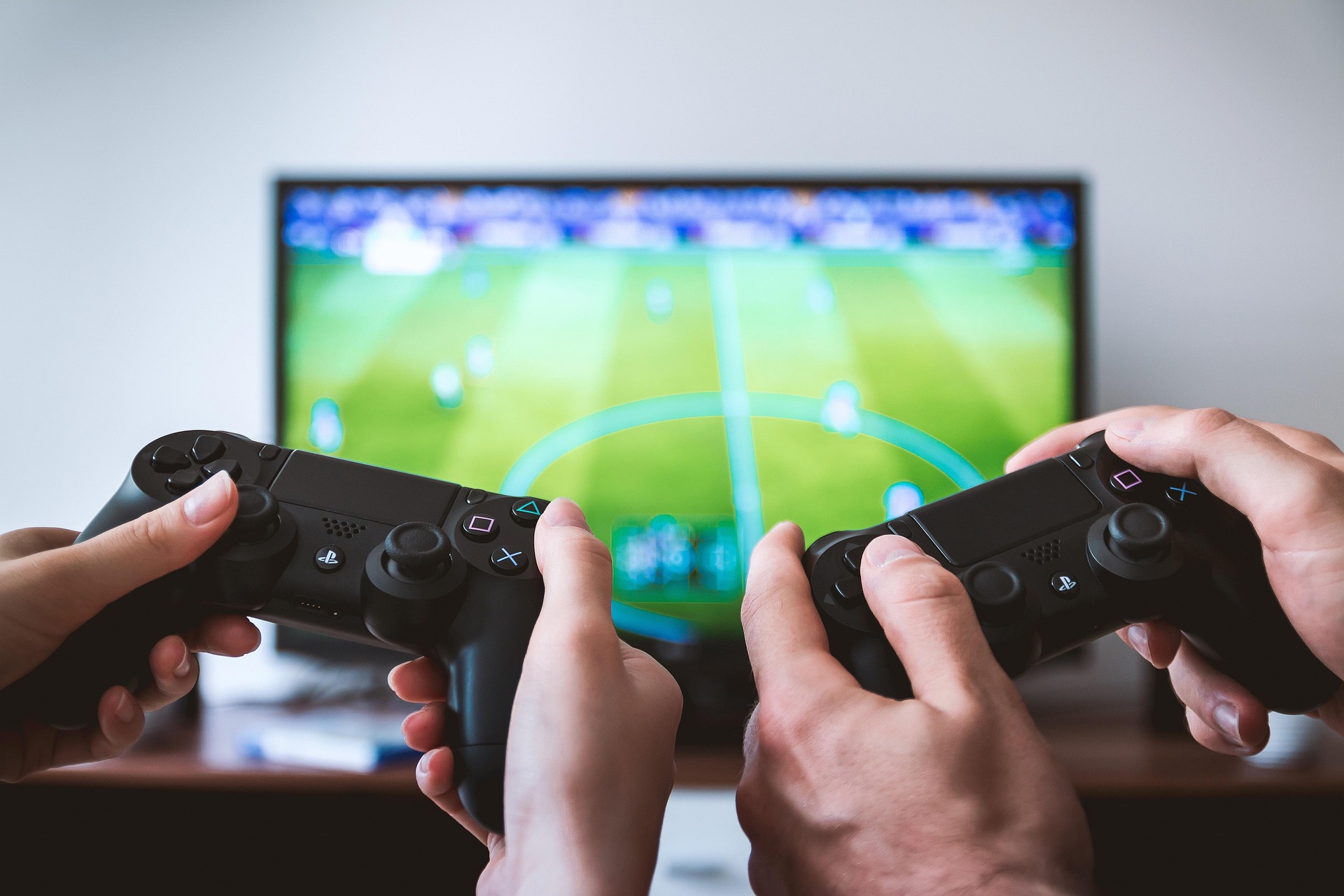

There is nothing quite like sinking into a massive gaming session on your PlayStation 4. Whether you are tracking enemy footsteps in a high-stakes shooter or absorbing the sweeping orchestral score of an open-world RPG, audio is half the experience. But nothing ruins that immersion faster than a tangled wire tugging at your controller. You look at your favorite pair of sleek, ultra-comfortable True Wireless Stereo (TWS) earbuds and think: Why can’t I just use these?
The short answer is that the PS4 doesn’t naturally like to share its audio via Bluetooth with third-party headphones. Sony utilizes a proprietary Bluetooth stack designed primarily for its own controllers and licensed accessories, prioritizing low-latency controller inputs over generic audio streaming.
Don’t worry, though—you aren’t trapped in the wired world. With a few simple workarounds, you can easily bypass this restriction. Here is exactly how to connect your Bluetooth earbuds to your PS4 and achieve the wireless gaming freedom you deserve.
The Root of the Problem: Why Doesn’t the PS4 Just Connect?
If you have ever tried going into the PS4’s Settings > Devices > Bluetooth Devices menu while your earbuds were in pairing mode, you probably ran into a frustrating error message: “Bluetooth audio devices are not supported by the PS4.”
This comes down to two major factors: bandwidth and latency. Standard Bluetooth audio codecs (like SBC or AAC) inherently introduce a slight audio delay. In a fast-paced video game, a 200-millisecond delay means you hear a gunshot after you see the flash on screen—a competitive nightmare. To prevent a poor user experience, Sony locked down native Bluetooth audio.
Fortunately, modern hardware innovations have evolved. Premium wireless earbuds now feature Bluetooth 5.3 chips, which offer drastically reduced latency and rock-solid stability. While the PS4’s internal software remains stubborn, the methods below allow you to bridge the gap effortlessly.
Method 1: The USB Bluetooth Transmitter (The Best Solution)
The most reliable, high-quality way to link your earbuds to a PS4 is by using a USB Bluetooth audio transmitter (often called a dongle). This clever piece of hardware plugs directly into the console’s USB port, tricks the PS4 into thinking a wired USB headset is attached, and handles the wireless audio processing externally.
Step-by-Step Setup:
- Plug in the Dongle: Insert the USB Bluetooth transmitter into one of the open USB ports on the front of your PS4.
- Enter Pairing Mode: Press and hold the pairing button on the USB transmitter until its LED light begins flashing rapidly.
- Prep Your Earbuds: Open the charging case of your earbuds (or remove them) to trigger their pairing mode. If you are using Ordtop earbuds, our One-Step Pairing technology ensures that as soon as they leave the case, they are actively looking for a signal.
- Link the Devices: Keep the earbuds close to the console. Within a few seconds, the light on the transmitter will turn solid, indicating a successful connection.
- Adjust PS4 Settings: On your console dashboard, navigate to Settings > Devices > Audio Devices. Ensure that both the Input Device and Output Device are set to your USB Headset (the dongle). Finally, change Output to Headphones from Chat Audio to All Audio.
This method provides a pristine, uninterrupted audio feed. Because high-quality transmitters utilize specialized codecs, you can enjoy lag-free gaming that keeps you perfectly synced with the on-screen action.
Method 2: The Bluetooth Aux Adapter via Controller
If you want a quick fix and don’t want to take up a valuable USB port on your console, you can use a mini 3.5mm Bluetooth transmitter plugged directly into your DualShock 4 controller.
Step-by-Step Setup:
- Connect to the Controller: Plug the 3.5mm Bluetooth transmitter into the headphone jack at the bottom of your PS4 controller.
- Pair the Hardware: Put both the adapter and your wireless earbuds into pairing mode. Wait for them to sync.
- Configure the Console: Go to Settings > Devices > Audio Devices. Set the Output Device to Headphones Connected to Controller. Just like before, make sure Output to Headphones is set to All Audio.
While this technically keeps a small adapter attached to your controller, it eliminates the long, restrictive cable stretching from your seat to the TV or controller, giving you the physical mobility needed during intense gaming moments.
Maximizing the Experience: What to Look For in Gaming Earbuds
Not all wireless earbuds are created equal when it comes to gaming. If you are looking for a pair that transitions seamlessly from your morning jog to an evening gaming marathon, keep these features in mind:
- Low Latency & Advanced Bluetooth: Look for earbuds utilizing Bluetooth 5.3. This ensures the fastest data transfer speeds possible, keeping audio lag completely unnoticeable.
- Ergonomic Fit & Comfort: Long gaming sessions require comfort. Standard hard-plastic buds can cause “ear fatigue” after an hour. Look for lightweight construction and soft silicone tips that distribute pressure evenly within the ear canal.
- Battery Management: There is nothing worse than your audio cutting out during a boss fight. Earbuds equipped with an LED dual digital display on the charging case take the guesswork out of gaming, showing you exactly how much juice is left in each bud before you start your raid.
- Passive Noise Isolation: A secure, tight seal blocks out background household noise, allowing you to lower the overall volume to a safe listening level without sacrificing the ability to hear subtle in-game details.
Final Thoughts
While Sony didn’t make it as simple as a menu click, connecting your favorite Bluetooth earbuds to your PS4 is incredibly straightforward once you have a simple USB or auxiliary transmitter. By bypassing the console’s internal software limitations, you unlock an immersive, cord-free audio experience that keeps you comfortable and focused on winning. Grab your adapter, pop in your earbuds, and experience your favorite games with a whole new level of freedom.